New research guide: The Confidence Economy, how AI is changing fashion commerce.
Technical, Shopify, Conversion
·
September 17, 2026
How to Speed Up a Shopify Fashion Store (Core Web Vitals Guide)
Every extra second of load time costs a fashion store 7% of conversions. Fashion stores are particularly vulnerable to speed issues because of image-heavy layouts. Here's the complete fix — no developer required for most of it.
Mehul Agarwal, Founder & CEO
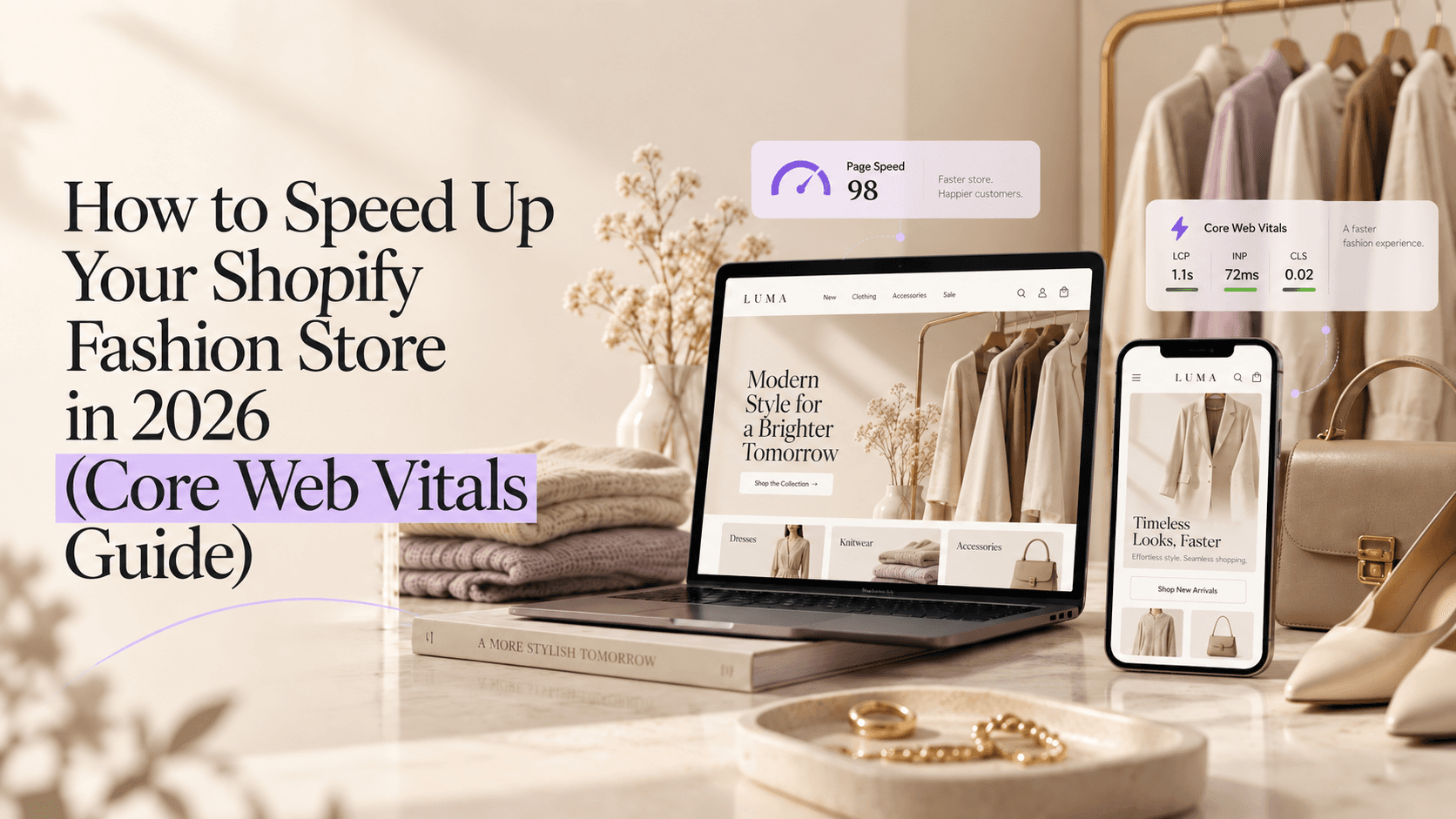
Fashion stores are harder to make fast than almost any other ecommerce category.
The product is visual. Fashion shoppers need to see multiple angles, lifestyle contexts, flat lays, and close-ups of texture and construction before they are confident enough to buy. Every product page carries 6-12 images. Every collection page loads 24-48 product thumbnails simultaneously. The catalog is inherently heavy.
This is not a reason to accept slow load times. It is a reason to treat speed optimization as a higher-priority investment for fashion than for a store selling single-image commodity products.
Your Shopify store could be losing 7% of conversions for every extra second it takes to load. At a 2% base conversion rate, moving from a 4-second load to a 2-second load does not add 14 percentage points. It adds a compounding sequence of improvements across every session on the store. The math across a year of traffic is significant.
Core Web Vitals now play a direct role in SEO and whether your store ranks or gets buried. Speed is not just a conversion problem. It is a search ranking problem. A slow store gets suppressed in Google results even when its content is strong.
This guide covers what Core Web Vitals actually measure, why fashion stores fail them specifically, and the prioritized fixes — most of which require no developer.
What Core Web Vitals measure
Core Web Vitals are three focused web performance metrics, each tied to a different part of the user experience. Largest Contentful Paint (LCP) measures loading performance — how long the main visible element takes to load, usually the hero or product image. Target: under 2.5 seconds. Over 4 seconds is a problem. Interaction to Next Paint (INP) measures interactivity — how quickly the site responds to clicks, taps, and inputs like add-to-cart or filters. Target: under 200ms. Cumulative Layout Shift (CLS) measures visual stability — whether content jumps around as the page loads.
Mobile scores typically run 40-60% worse than desktop because phones have slower processors and cellular connections, and Google's test applies CPU throttling. Since Google uses mobile-first indexing, mobile is the score that matters for rankings. Always optimise mobile first.
For fashion stores:
LCP fails most often, caused by large hero images and high-resolution product photos
INP fails when too many apps inject JavaScript that blocks the main thread
CLS fails when product images load without defined dimensions, causing cards to shift
How to diagnose your current scores
Three tools, used in combination:
Google PageSpeed Insights (pagespeed.web.dev): Enter your store URL. Get your LCP, INP, and CLS scores on both mobile and desktop. This is the authoritative measurement — it uses real user data from the Chrome User Experience Report (CrUX) where available, not just a lab simulation. Run it on your homepage, your most-visited collection page, and your best-selling product page. These are the three most important page types for fashion stores.
Shopify's built-in Online Store Speed report: Admin → Online Store → Themes → "View Report" on your live theme. This gives a Lighthouse-derived score and identifies which page types are slowest. It surfaces the specific theme sections causing the most performance impact.
Google Search Console → Core Web Vitals report: Shows your real-world field data for LCP, INP, and CLS. Pages marked "Poor" are actively being suppressed in search results. Pages marked "Needs Improvement" have room to move up rankings with optimization. This is the score that matters for SEO.
The fixes, in priority order
Fix 1: Image optimization (biggest single impact)
WebP is the best choice for most Shopify product photos in 2026, offering 25-35% smaller file sizes than JPEG at equivalent visual quality. Expected results: 50-70% total reduction in image weight, significantly improved Core Web Vitals, better search rankings and user experience.
Shopify automatically converts uploaded images to WebP format for browsers that support it (which is now virtually all of them). This means you do not need to manually convert every image — Shopify handles the format. What you do need to control:
Upload at the right size. Shopify will resize down but it cannot resize up without quality loss. Resize images to the largest size they actually need to appear on the page, then let Shopify serve the right version for the device. That small habit alone can improve Shopify speed score more than people expect. For product images on a standard PDP, 2048px on the longest dimension is the right upload size. For collection thumbnails, 800px is sufficient. Uploading 5000px images "just in case" forces Shopify to serve unnecessarily large files even after resizing.
Compress before uploading. Use Squoosh.app (free, browser-based) or TinyPNG to compress images before uploading to Shopify. A 2MB product photo can typically be reduced to 300-400KB with no visible quality loss. Do this for every new product photo added to the catalog.
Preload the hero image. Preload critical images: explicitly tell the browser to download your hero image or product featured image first by using <link rel="preload" as="image"> in your document head. Add the fetchpriority="high" attribute to your LCP image element. This tells the browser to process it immediately, bypassing render-blocking queues. This is a single line added to your theme's <head> section and is the most direct fix for a failing LCP score caused by a slow hero image.
Set image dimensions in your theme. Always include width and height attributes on images: prevents layout shift as images load, improves CLS scores significantly. Matches actual image dimensions. In your Liquid theme files, every <img> tag should include explicit width and height attributes. This tells the browser how much space to reserve for the image before it loads, eliminating the layout shift (CLS) that occurs when images load and push other content around.
Fix 2: App audit (second biggest impact, often fastest fix)
Unused or poorly coded Shopify apps are the biggest cause of slow Shopify stores in 2026. Each installed app can inject its own JavaScript and CSS into every storefront page — even pages where the app is not active — adding 200-500ms of render-blocking load per app.
Most fashion stores accumulate apps over time — a review app, a wishlist app, a loyalty app, a size guide app, a chat app, a VTO app, a pop-up app. Each adds JavaScript to the page. Collectively, they compound.
Remove unused Shopify apps — each app adds approximately 150-300ms to your LCP. Audit your apps monthly.
The audit process: In Shopify Admin → Apps, list every installed app. For each app, ask: Is this actively generating revenue or serving a customer need? If the answer is no, uninstall it. "We might use it someday" is not a reason to carry 300ms of load penalty per page.
For apps you keep: check whether the app developer offers a way to limit the app's script injection to only the pages where it is active. A review app does not need to inject JavaScript on the cart page. A chat widget does not need to load on the checkout page. Most app developers provide documentation on how to scope their app's script loading.
Unused or poorly coded apps add render-blocking JavaScript and CSS. Auditing and removing apps you no longer use is typically the fastest single fix for Shopify speed optimization.
Fix 3: Lazy loading for below-fold images
Never lazy load above-the-fold images: hero images and primary product photos should load immediately. Only defer images that require scrolling to view.
Lazy loading defers the download of images that are not immediately visible — the shopper has to scroll to reach them before they load. This reduces initial page load weight significantly on image-heavy fashion collection pages.
For collection pages with 24-48 products, only the first row (8-12 products visible without scrolling on desktop) should load immediately. All products below the fold can load as the shopper scrolls down.
In Shopify themes, this is typically controlled by adding loading="lazy" to image elements in your Liquid collection templates. Most modern Shopify themes (2.0 and later) have this as a configurable option in the theme settings without requiring code changes.
The important exception: the most common mobile failures are LCP (large hero images) and INP (heavy JavaScript from apps blocking the main thread). Never apply lazy loading to the first visible image on a product page — this is typically the main product image, which is your LCP element. Lazy loading your LCP image directly causes LCP failures.
Fix 4: Reduce render-blocking JavaScript
INP (Interaction to Next Paint) is the hardest Core Web Vital to pass in 2026. It exposes real performance issues. Interactivity is now measured across the full session, making JavaScript, apps, and main-thread blocking critical to fix.
Render-blocking JavaScript is code that must finish executing before the browser can display the page. Every script that loads in the <head> of your theme without a defer or async attribute is potentially render-blocking.
The practical fix: in your theme's theme.liquid or equivalent base template, ensure third-party scripts (analytics, chat widgets, review apps) load with defer or async attributes. defer is preferable for most cases — it downloads the script during HTML parsing and executes it only after parsing is complete, preventing it from blocking the page render.
For Shopify specifically: scripts loaded through the App Proxy or through Shopify's ScriptTag API load after the main theme JavaScript in most cases. But scripts added directly to the theme's <head> through a theme customization do not. Review any scripts added manually to your theme files.
Fix 5: Theme audit
If scores stay poor after app cleanup, image compression, and theme simplification, you are likely looking at deeper structural issues. A good Shopify speed audit should check app scripts, theme files, image delivery, third-party tags, redirect chains, and Core Web Vitals on the pages that matter most.
Some Shopify themes are inherently heavy. Themes that offer maximum design flexibility (full-screen video sections, complex animation systems, parallax scroll effects) achieve this through JavaScript and CSS overhead that loads on every page regardless of whether the features are used.
If your store is running an older theme version, check for updates. Theme developers regularly release performance improvements, and an older theme version may have LCP or INP issues that were fixed in a later release.
If your theme has sections with animations or video that are not used on most pages, disable them. The JavaScript for a parallax scroll effect loads on every page even if only the homepage uses it.
Fix 6: Enable Shopify's built-in performance features
Two Shopify features that many stores have not enabled:
Storefront renderer caching: Shopify Plus stores can enable storefront renderer to cache page responses at Shopify's CDN edge. For non-Plus stores, this is handled automatically, but ensuring your store is not disabling Shopify's CDN through theme customizations is worth verifying.
Predictive prefetching (in newer themes): Some Shopify themes and the Shopify app itself support link prefetching — downloading the next page a shopper is likely to navigate to before they click the link. This makes navigation feel instant. Check your theme's performance settings for prefetch options.
The fashion-specific consideration: AI tools and speed
Fashion stores in 2026 are adding AI stylists, virtual try-on tools, and proactive engagement widgets. Each of these involves JavaScript that loads on the store.
The right tools are built to be performance-safe: they load asynchronously (after the main page content), they only activate when a shopper interacts with them, and their initial bundle size is minimal.
Elara's widget, for example, loads its core bundle asynchronously and the VTO module only when a shopper taps "Try on this look" — it is not part of the initial page load. The proactive engagement system monitors behavioral signals in a lightweight event listener that does not block the main thread.
When evaluating any AI tool for your fashion store, ask the developer: "What is the JavaScript bundle size your tool adds to the initial page load, and does it load synchronously or asynchronously?" A tool that adds 200KB of synchronously loaded JavaScript is a LCP problem waiting to manifest at scale.
The compound effect of getting it right
Speed compounds with everything else you do for SEO and conversion. Start with the highest-impact, lowest-effort fixes: optimize your images, prune apps you do not use, and set dimensions on images to stop layout shift. Those three alone move most stores a long way toward passing.
A fashion store that passes Core Web Vitals benefits across three dimensions simultaneously:
SEO: Pages that pass Core Web Vitals rank higher in Google results than equivalent pages that fail them. For collection pages targeting high-volume fashion queries, this translates directly to organic traffic.
Conversion: Improving your Core Web Vitals score from Poor to Good can lift organic click-through rates by 15-20%. Combined with the 7% per second conversion impact, a store that moves from 4-second to 2-second load time on mobile is a materially different business.
Paid efficiency: Paid social ads that land on a fast page convert better than ads that land on a slow page. Your ROAS includes the quality of the landing experience. A slow product page depresses the conversion rate on every paid click you buy.
Speed is not an optional technical project. It is the foundation on which every other conversion optimization compound — the photography, the AI stylist, the email flows, the social proof. All of it performs better on a fast store than a slow one.
The 30-minute fix list (no developer required)
These five actions take under 30 minutes total and move the needle on most Shopify fashion stores:
Run your homepage, best-selling collection page, and best-selling PDP through PageSpeed Insights. Note which metrics are failing.
Audit your installed apps. Uninstall any that are not actively generating revenue.
Check image file sizes for your last 20 product uploads. Any above 500KB should be recompressed and re-uploaded.
In Shopify Admin → Online Store → Themes → Theme settings, look for "image loading" or "lazy load" options. Enable lazy loading for collection pages.
Enable guest checkout and Apple Pay / Google Pay in Shopify Admin → Settings → Checkout. These are not speed fixes but they reduce checkout friction — the combined effect is similar to a speed improvement.
Run PageSpeed Insights again after completing these five. Most fashion stores see a 15-25 point mobile improvement from this set alone.
Related reading
How to Launch a Shopify Fashion Store in 2026: The Complete Guide · How to Increase Shopify Sales for Fashion Brands in 2026 · Shopify Fashion SEO: Stop Indexing Variant Pages
Keep reading

Agentic Commerce, Shopify, News
Shopify Channel Mapping and Knowledge Base: A Fashion Brand Guide
Shopify's October 28 channel mapping and October 26 knowledge base change what AI agents see about your colours, variants and returns. What fashion brands should do this week.
October 29, 2026

GEO, Discovery
How to Get Your Fashion Brand Recommended by ChatGPT and AI Mode
A six-step plan for Shopify fashion brands to appear in ChatGPT and Google AI Mode shopping answers, updated for Shop MCP, Universal Cart and UCP in October 2026.
October 28, 2026

AI Shopping Assistants, Shopify, Comparison
Alhena AI Alternatives for Shopify Fashion Brands: 5 Tools Compared
Five Alhena AI alternatives for Shopify fashion brands, with what each pricing model costs at the same chat volume, checked on vendor listings in October 2026.
October 27, 2026